
Overview
A "Client Branding" module typically refers to the visual representation of a company or brand that is used in various materials, such as websites, marketing collateral, and products.
Brand Identity: A client logo is a key element of a company's brand identity. It is a visual representation that helps establish the brand and communicates its values, personality, and mission.
Recognition: Logos are designed to be unique and memorable. A well-designed logo facilitates quick recognition and distinguishes a brand from its competitors. It's often the first visual element that comes to mind when thinking about a company.
Features Included
Here's an overview of the key features and purposes of a Client Branding Module:
- Logo Upload: Allow users to upload and manage their client logos easily.
- Display Options: Provide various options for displaying logos, such as grids, carousels, or sliders.
- Linking: Enable linking logos to specific client profiles, websites, or additional information.
- Tooltip text: Enable tooltip text typically serves the purpose of providing additional information or context about client logo.
- Logo box - Background display style: There are four types of background styles, such as "All Box", "Odd Box", "Even Box", "Even and Odd Box" and "None". You can better present your brand.
- Animation: Enable animation, usually used for better user experience.
- Layout: Adjust the number of columns and styling based on your specific needs.
- Navigation Controls: Allow users to navigate through the logos manually with previous and next controls.
- Auto-play: Provide an option for automatic rotation through the logos, enhancing user engagement.
- Responsive: Ensure that the logo module is designed to be responsive, adapting to different screen sizes and devices.
- Customization: Allow users to customize the appearance of the logo module, such as adjusting the size, spacing, and layout.
- Performance Optimization: To ensure a smooth user experience, the module may be optimized for performance, taking into account factors such as logo compression and lazy loading.
- Flexible Functionality: Client Branding modules allow for a high degree of customization. You can modify the appearance, styles, and behavior to match your website and user experience goals. This includes the ability to change color, fonts, alignment, slider setting, width, height, background color, background image, background gradient, spacing, letter spacing, text transform, tooltip text style, slider dots and arrows style, hover effects and more.
Client Branding is often used on the homepage or a dedicated page of a business website to highlight key partnerships or showcase the diversity of clients a company has served. The exact features may vary based on the specific implementation or platform used for creating the grid and slider.
Module Setup
Setting up the "Client Branding" Module is easy and straightforward. All you have to do is perform a simple drag and drop.
Now let’s go through the setup steps:
- Login to your HubSpot account and left side navigate to the “Content” tab.
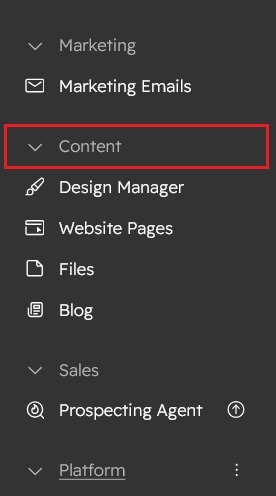
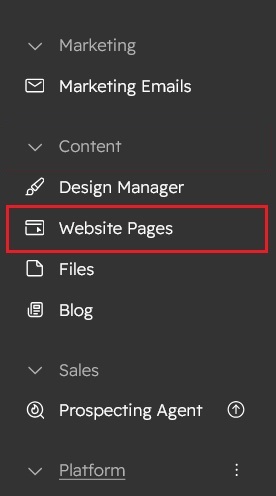
- Click on “Content” in the dropdown menu and select “Website Pages” from the extended menu.
- Under the module selection menu, search for “Client Branding” and select the module
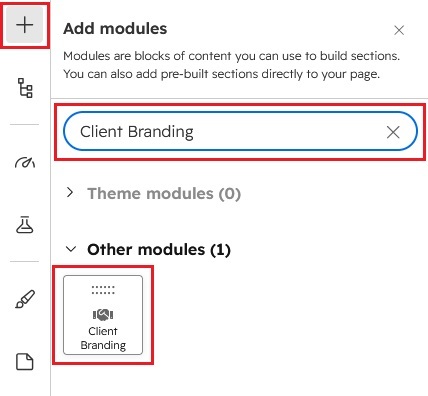
- Now simply pick the "Client Branding" module, drag, and drop it wherever you want on your page. You’ll see a new module appear on the page.
Figure 1: Grid Layout

Figure 2: Slider Layout

Content Setting

Under “Content”, you can edit the content you want to be displayed on your Client Branding section. Easily adjust and update the “Section Layout”, "Enable Heading", "Overline text", "Heading text", "Heading Animation", "Logo Repeater items", "Enable Logo Link", "Enable Logo Tooltip", "Logo Grid Layout", "Logo slider", "Number of display per row setting (Desktop, Tablet and Mobile)" and more as you please.
Below is an overview listing of module content settings:
- Section layout: Section layouts can be set across module levels.
- Enable Heading: Section heading can be display using "Enable heading" field
- Heading Group: Heading group includes heading animation, overlay text and heading text.


- Enable Animation: Show/hide Section heading animation.
- Overline text: Keyword or highlight text of the section.
- Heading text: Title and description of the section.
- Logo display style: Client logo can be displayed in two layouts. Like 1) Grid and 2) Slider
- If Select Grid Layout: If you select the grid, you will see extra four style in it. 1) With Box Gap Border, 2) Without Box Gap Border, 3) Internal Border, and 4) None
- Logo: Logo group include the "Enable logo animation", "Number of display per row", "Logo items" such as "Logo image", "Logo Enable Link", and "Logo Enable Tooltip".
- Enable logo animation: Show/hide logo animation.
- Animation: Easily can manage the Animation style such as "Fade", "Flip" and "Zoom" and also control the animation "Duration".
- Number of display per row: You can manage the logo to be displayed on desktop, tablet and mobile.
- Logo items: Logo Items are a repeater group. It includes "Logo Image", "Logo Link" and "Logo Tooltip".


- Logo: Allow users to upload and manage their client logos easily
- Enable logo link: Enable linking logos to specific client profiles, websites, or additional information.
- Enable logo tooltip: Enable tooltip text typically serves the purpose of providing additional information or context about a client logo.
- Slider setting: Autoplay slider, slider animation, Pause On Hover, slider custom speed, arrows and dots settings can be customized for real desktop, tablet, mobile and small mobile.

- Module JS: This is the group of the module level JS
- Enable jQuery JS: If you already use jQuery JS, then disable JS. Because same JS not required multiple time.
- Enable slick slider JS: If you already use slick slider JS, then disable JS. Because same JS not required multiple time.
Style Setting

- Section: Section Spacing and Background can be customized easily. Such as desktop, tablet and mobile.
- Heading: Easy customize the Alignment, Spacing, Font size, Color, Line height, Text transform and Font weight and Heading alignment and spacing.


- Logo block: Logo block include the "Logo Row width", "Background", "Border", "Spacing" and "Alignment".
- Logo Row - Width: Logo block's width can be manage across desktop, tablet and mobile with ease.
- Background: The logo block background can be easily managed. Such as background solid color and background gradient color.
- Spacing: The logo block spacing can be easily managed. Such as devices (Desktop, Tablet and Mobile).
- Border: The border of the logo block can be easily customized using the border field.
- Border radius: The border radius of the logo block is also customizable.
- Logo items alignment: Logo column alignment using "Logo items alignment" field.
- Logo items: Include the "Gird spacing", "Column inner spacing", "Logo box - Background display style", "Border radius", "Border", "Logo alignment", "Logo Filter Functionality", "Tooltip style" and "Box Shadow style".
- Grid spacing: Grid spacing using easily managed the "Grid Column" and "Grid Row" spacing.
- Column inner spacing: Using this field easily managed the box padding. Such as Desktop, Tablet and Mobile.
- Logo box - Background display style: There are four types of background styles, such as "All Box", "Odd Box", "Even Box", "Even and Odd Box" and "None".
- Border radius: The border radius of the logo items boxes are also customizable.
- Border: The border of the logo items boxes are also customizable.
- Logo alignment: The Logo Alignment field allows the logo to be aligned "Right", "Center" and "Left" respectively.
- Logo filter: The logo can be adjusted to "Blur", "Opacity", "Brightness", "Contrast", "Grayscale" and "Invert" from the "Logo Filter" field.
- Tooltip: The Text color, Font size, background color, Border and Border radius of the tooltip are easily customizable.
- Enable Box shadow: "Enable box shadow" field using, you can use custom box shadow.

- Hover: "Box Shadow", "Border Color" and "Logo Filter" on boxes hover.
- Slider navigation: Included the slider dots and arrows style.
- Slider dots: Easily managed the dots "Width", "Height", "Border", "Border radius", "Background color", "Hover border color", "Hover background color", "Active border color", and "Active background color"
- Slider arrows: Easily managed the arrows "Arrows box Width", "Arrow box Height", "Arrows icon size", "Border", "Border radius", "Background color", "Hover border color", and "Hover background color".
- Container custom size: Container width to customize the custom container width.
Support
If you have further questions, please reach out to our team at hawksky3012@gmail.com.