
Overview
An ImageCarousel module is a user interface component or module used in web and mobile applications to display a collection of images in a slideshow-like format. It allows users to navigate through multiple images using navigation controls like arrows, dots, or swipe gestures. It is commonly used in galleries, product showcases, portfolios, and landing pages to present visual content in an engaging and compact format.
Features Included
Here are key features and effects that you might find in a "ImageCarousel" module:
- Rotating Images: Displays multiple images in a single space, cycling through them automatically (autoplay) or allowing manual navigation.
- Carousel setting: Customize the behavior and appearance of your carousel, including autoplay, speed, loop, navigation, slidesToShow, slidesToScroll, infinite, pauseOnHover, autoplaySpeed, slide gap, slide height and more. All settings are fully responsive, with support for tablet and mobile devices.
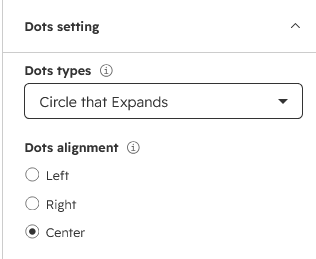
- Dots Types: You want carousel slide indicators (dots) with different styles based on these options:
- Circle: Simple round dots.
- Circle that Expands: Round dots that get bigger on active slide.
- Square: Simple square dots.
- Circle that Expands: Square dots that get bigger on active slide.
- Short Description/Caption: Each image can be paired with a concise text block (a title, caption, or short description).
- Slides Heading Position: Slide heading position options such as "Top Left", "Top Center", "Top Right", "Center Center", "Bottom Left", "Bottom Center" and "Bottom Right".
- Clickable Slides: Each image can link to a custom URL.
- Slides Caption Background: Choose how your slide captions stand out with background styling options such as Solid color and Gradient color.
- Space Efficiency: It's excellent for showcasing diverse content (like product features, portfolio items, or testimonials) in a compact area on a webpage.
- Slides Overlay: Add a semi-transparent layer over your slide images to improve caption visibility and enhance visual depth. And Overlay color options such as Solid color and Gradient color.
- Interactive Demos: Allow users to explore ImageCarousel through interactive demos. [Click here to view the demo.]
- Slides GAP Setting: Customizable slide gap (spacing) for desktop, tablet, and mobile independently.
- Slides Box Shadow: Add depth and emphasis to each slide with customizable box shadows, enhancing visual separation from the background.
- Slides Border Radius: Apply rounded corners to your slides with adjustable border radius settings, creating a smoother and more modern look.
- Design Control: Easily customize colors, fonts, spacing, borders, hover effects, box shadows, animations, and dots alignment to match your brand style. Choose from solid color, gradient, or image backgrounds for full design flexibility.
- Smooth Animations: Attracts the user's attention, improves the intuitiveness of the user interface, and contributes to a modern and attractive design.
- Responsive & Mobile-Optimized: Ensures a seamless and accessible user journey, accommodating users on different devices without compromising functionality or design. And Optimized for mobile, tablet, and desktop for consistent user experience across devices.
The ImageCarousel module is a versatile and practical UI component that enhances the display and organization of job-related content on websites, improving both user engagement and visual appeal.
Module Setup
Setting up the "ImageCarousel" Module is easy and straightforward. All you have to do is perform a simple drag and drop.
Now let’s go through the setup steps:
- Login to your HubSpot account and left side navigate to the “Content” tab.
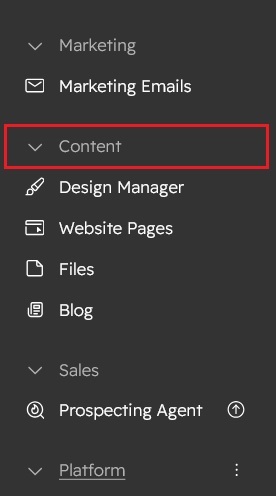
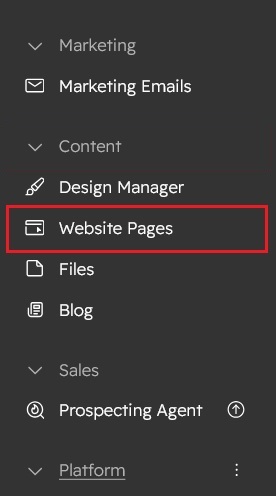
- Click on “Content” in the dropdown menu and select “Website Pages” from the extended menu.
- Under the module selection menu, search for “Image Carousel” and select the module
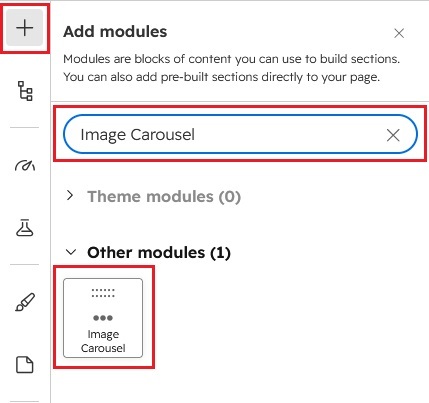
- Now simply pick the "Image Carousel" module, drag, and drop it wherever you want on your page. You’ll see a new module appear on the page.

Content Setting
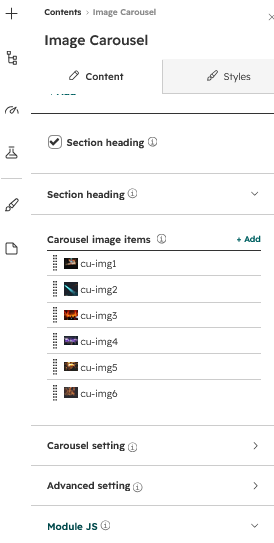
Under “Content”, you can edit the content you want to be displayed on your Image Carousel section. Easily edit, delete and update the “Section heading”, "Overline text", "Heading text", "Animation", "Image Carousel items (Repeater)", "Carousel image", "Image Caption", "Short Description", "Slide Link", "Carousel setting", and "Advanced setting", "Module JS" and more as you please.
Below is an overview listing of module content settings:
- Section heading: Enable section headings to show the main heading at the top of the section. This is an optional field.

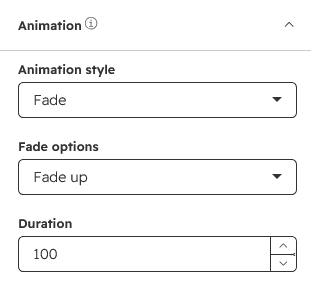
- Animation: You can use animations for section heading, which give a smooth effect on page scrolling. Such as "fade", "flip" and "zoom".
- Overline text: Overline text is a small line of text placed above a heading or title, often used to provide context or categorize content. This is an optional field.
- Heading text: Heading text is used to define titles or sections, helping organize content and improve readability.
- Animation: You can use animations for section heading, which give a smooth effect on page scrolling. Such as "fade", "flip" and "zoom".
- Image carousel items: This is a repeating group of items. You can edit, delete, and update carousel data yourself.
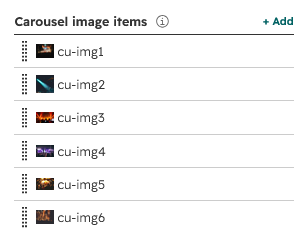
- Carousel image: Use this field to edit and update the carousel image.
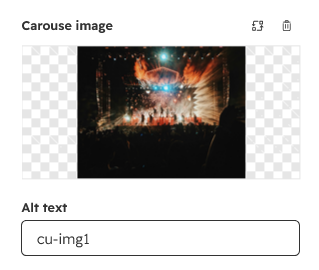
- Slide title: Use this field to edit and update the slide title. This is an optional field.
- Slide short description text: Use this field to edit and update the slide short description text. This is an optional field.
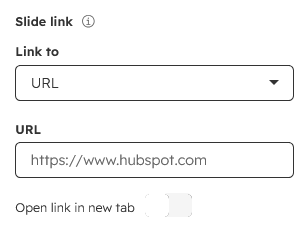
- Slide link: Allows users to apply directly or via external application links. This is an optional field.
- Carousel image: Use this field to edit and update the carousel image.
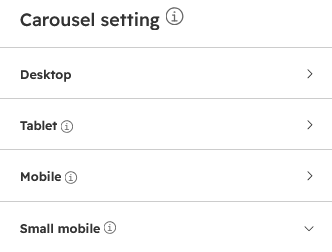
- Carousel settings: Adjust slide transition speed, autoplay options, autoplaySpeed, navigation controls, and the number of visible slides to create a smooth, infinite, pauseOnHover, Slide gap, Slide height and engaging user experience. And carousel control settings can be managed on desktop, tablet, and mobile.
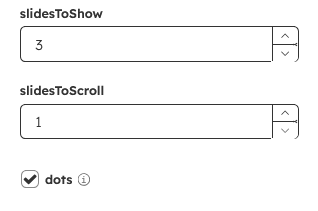
- slidesToShow: Adjust this to control the number of items shown.
- slidesToScroll: Set how many slides move per scroll action.
- dots: Users can click dots to navigate between slides. Choose from four dot styles: Circle, Circle that Expands, Square, and Square that Expands. You can also set the dot alignment to Left, Center, or Right based on your layout preference.
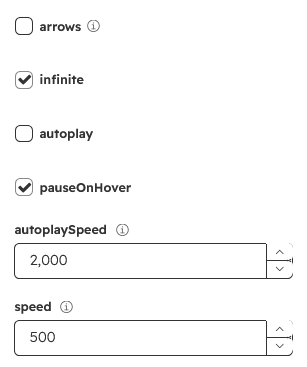
- arrows: Users can click arrows to move between slides.
- infinite: Enable continuous looping of slides. Slides restart seamlessly after the last one.
- autoplay: Slides advance automatically without user interaction.
- pauseOnHover Pause autoplay when the user hovers over the carousel.
- autoplaySpeed Set the time interval between automatic slide transitions.
- speed: Control how fast slides transition from one to another.
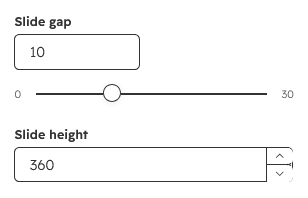
- Slide gap: Set the space between each slide in the carousel.
- Slide height: Define the height of each slide in the carousel. Adjust to fit your content and maintain visual balance.
- Advanced settings: This group includes "Section ID", "Section Class", "Section Layout", "Enable Animation", "Enable slider heading", "Heading text position (Top Left, Top Center, Top Right, Center, Bottom Left, Bottom Center and Bottom Right)", "Heading text Background", "On hover slide image overlay (Solid and Gradient color) ", "Enable border radius", "Enable slide link " and "Show/Hide Box Shadow", etc.
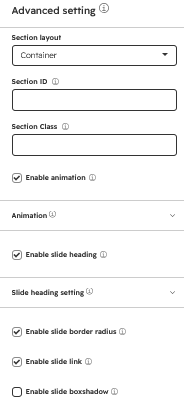
- Module JS: Include the module level jQuery show/hide field.
Style Setting
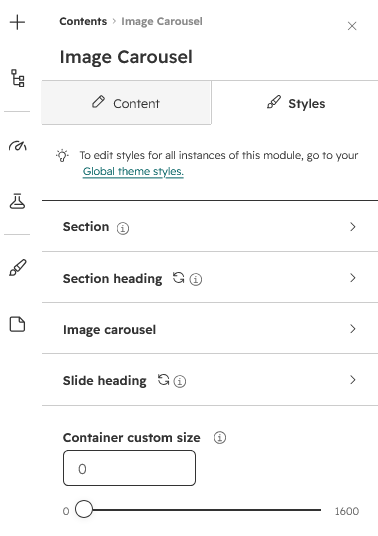
- Section: Under section background to manage module background solid color, background gradient and background image with overlay solid color and gradient. And spacing to easily manage desktop, tablet and mobile padding.
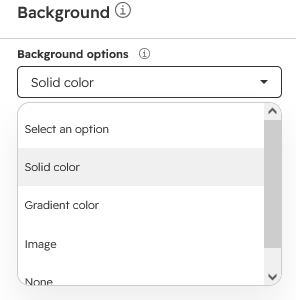
- Section heading: Easily customize text typography—including font, color, line height, text transform, letter spacing, font weight, and alignment—and manage spacing across desktop, tablet, and mobile devices.
- Image carousel: Easily customize the style of dots and arrows navigation and slide border radius and so on. Choose your preferred look to match your design perfectly.
- Slide heading: Customize the font, size, and color of slide headings. Make your titles stand out and match your brand’s style.
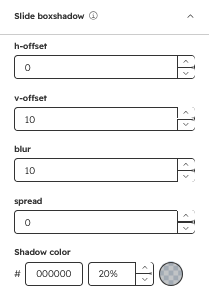
- Slide box shadow: Easily customize column slide box shadow.
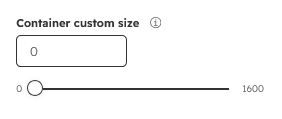
- Container custom size: Container width to customize the custom container width.
Support
If you have further questions, please reach out to our team at hawksky3012@gmail.com.