
Overview
The "Process Steps" module serves as the foundation for guiding the execution of any project or workflow, providing a structured framework to ensure efficiency, consistency, and success. By breaking down complex tasks into manageable steps, this module empowers teams to navigate through intricate processes with clarity and precision.
Features Included
Here are key features and effects that you might find in a "Process Steps" module:
- Step-by-Step Guidance: Provides a systematic breakdown of the process into individual steps, guiding users through each phase of execution.
- Step Definition: Allows users to define individual steps within a process.
- Step Options: You can represent a process step with a Number or Icon.
- Flexibility: The module allows for flexibility in managing dependencies, including the ability to add, remove, or modify dependencies as needed throughout the project lifecycle.
- Interactive Demos: Allow users to interact with the process steps through interactive demos.
- Dark Mode: Switch to Dark Mode for reduced eye strain. Enhance readability in low-light environments.
- Background: You can use step background (Solid and Gradient) color.
- Hover effect: Steps Hover style, extremely customizable and smooth.
- Smooth Transitions and Animations: Implementation of visually appealing transitions and animations to provide a polished and modern user experience.
- Unlimited Style: Endless customization possibilities for design, allowing users to tailor the interface to their preferences without constraints. Offers flexibility to customize steps according to the specific needs and requirements of the project or workflow.
- Cross-Browser Compatibility: Test and ensure compatibility with major browsers to provide a consistent experience. Consider using browser prefixes or polyfills for CSS features if needed.
- Responsive Design: Ensure that the process steps module is responsive and compatible with various devices and screen sizes, including desktops, laptops, tablets, and smartphones.
In this module, we will delve into the intricacies of defining, planning, executing, and evaluating each step of the process. From identifying objectives to documenting results, every stage plays a critical role in achieving desired outcomes. By following this systematic approach, teams can streamline operations, minimize errors, and maximize productivity.
Module Setup
Setting up the "Process Steps" Module is easy and straightforward. All you have to do is perform a simple drag and drop.
Now let’s go through the setup steps:
- Login to your HubSpot account and left side navigate to the “Content” tab.
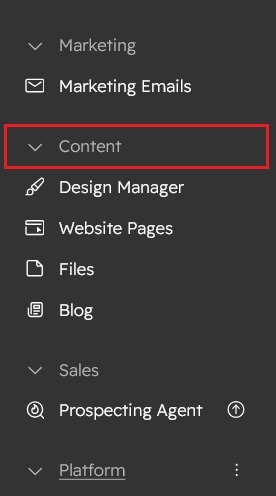
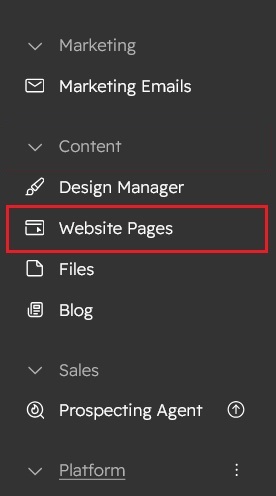
- Click on “Content” in the dropdown menu and select “Website Pages” from the extended menu.
- Under the module selection menu, search for “Process Steps” and select the module
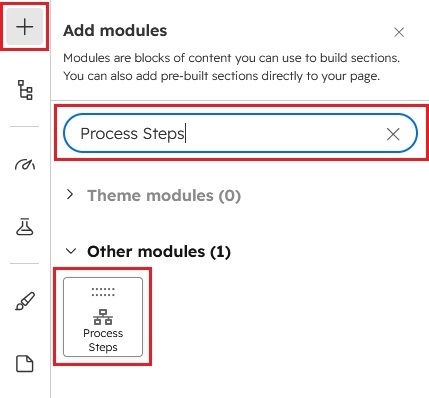
- Now simply pick the "Process Steps" module, drag, and drop it wherever you want on your page. You’ll see a new module appear on the page.
Figure: Drag and Drop View

Content Setting

Under “Content”, you can edit the content you want to be easily adjust and update the “Section layout”, "Enable heading", "Enable animation", "Process steps style (Number or Icon)", "Steps title", "Steps Description" "Steps animation", "Steps Circle top option", "Advanced setting" and more as you please.
Below is an overview listing of module content settings:
- Section layout: Section layouts can be set across module levels. Such as "Container" and "Full width".
- Enable animation: Animation of Heading and process steps items can be shown/hidden using "Enable animation" field.

- Enable heading: Section heading can be display using "Enable heading" field
- Section heading: Section heading group includes heading animation, overlay text and heading text.


- Process steps style: The process steps are two types: 1) Number and 2) Icon. You can use it according to your design.

- Process steps items: This is a repeater group of process steps. You can add as many steps as you want.

- Animation: You can set the animation of the steps yourself. Such as "Fade", "Flip" and "Zoom".
- Icon: If you select Icon in Process Steps, Icon group will be shown. You can use the own default and custom icons.

- Steps title: Steps title are fully editable. Which you can change according to your requirement.
- Description text: Steps description are fully editable. Which you can change according to your requirement.
- Advanced setting: This group includes the "Box top (Number or Icon)", "Steps arrow" and "Arrow image". You can use advanced settings according to your design.
- Module JS: Include the module level jQuery show/hide field.
Style Setting

- Section: Under section spacing and background to manage module background solid color, background gradient and background image with overlay solid color and gradient. And spacing to easily manage desktop, tablet and mobile padding.

- Section heading: Easy customize the overline text typography font, color, line height, text transform and font weight and Heading alignment and spacing.
- Process steps items: This group includes,
- Circle: Easily customize the circle style. This group includes the following style, such as,
- Outer circle: "Circle size", "Circle background color", "Border radius" and "Circle border" you can easily customize it.
- Inner circle: "Circle size", "Circle background color", "Border radius" and "Circle border" you can easily customize it.
- Icon: Easily customizable, the "Icon size" and "Default icon color".
- Steps title font: "Font size", "Font weight", and "Font color" are easily customizable according to your design.
- Background: Customizable the steps box background color like "Solid" and "Gradient" color according to your design.
- Border radius: Easily customizable the border radius "Desktop", "Tablet" and "Mobile".
- Spacing: Easily customizable steps box spacing.
- Grid gap: You can set the grid gap yourself.
- Alignment: You can set the process steps of alignment yourself. Such as "Center", "Left" and "Right".
- Border: You can set the process steps box border yourself.
- Hover - Steps box: This group includes the following customizable fields,
- Circle: Hover on, easily customize the circle background color.
- Title text color:Hover on, easily customize the title text color.
- Description text color:Hover on, easily customize the description text color.
- Background:Hover on, easily customize the box background (Solid and Gradient) color.
- Border color:Hover on, easily customize the box border color.
- Circle: Easily customize the circle style. This group includes the following style, such as,
- Container custom size: Container width to customize the custom container width.
Support
If you have further questions, please reach out to our team at hawksky3012@gmail.com.