
Overview
A "Sticky Slider Navigation" module is a user interface component commonly used in web development to enhance navigation and user experience on websites. The primary features of such a module typically include the ability to "stick" or "freeze" the navigation bar at a fixed position on the page while allowing users to navigate through different sections or content.
Features Included
Here are some key features and extra effects that you might find in a "Sticky Slider Navigation" module:
- Flexible Functionality: Sticky Slider Navigation modules allow for a high degree of customization. You can modify the appearance, styles, and behavior to match your website design and user experience goals. This includes the ability to change typography, color, alignment (Vertically and Horizontally), text transform, border radius, line height, spacing, section background (Solid, Gradient and Image with overlay options), animation, column layout, button styles, sticky navigation label different icon and more.
- Sticky Behavior: The ability to stick to a fixed position on the screen, usually at the top or side, as the user scrolls down the page.
- Header fixed or not top: The module works in both functionality whether the header is fixed or not.
- Slider Functionality: Interactive sliding capability, allowing users to navigate through different sections or menu items within the slider.
- Column Layouts: Full width and Two column layouts are included.
- Moveable or Ordering Elements: You can order column elements like (Overline text, Heading, List, Button, Image and video) your way.
- Integration with Page Sections: Alignment of each navigation item in the slider with corresponding sections or content on the page, enabling smooth scrolling to specific sections.
- Smooth Transitions and Animations: Implementation of visually appealing transitions and animations to provide a polished and modern user experience.
- Scroll Spy: Integration with a scroll spy feature to highlight or activate the corresponding navigation item as the user scrolls through different sections of the page.
- Customization Options: Configurable styles, colors, fonts, alignment (Vertically and Horizontally), section background (Solid, Gradient and Image with overlay options) and other design elements to allow integration with the overall look and feel of the website.
-
Configuration Options: Settings for adjusting the behavior of the module, including animation speeds, sticky bar height, and other parameters to suit specific website requirements.
- Lazy Loading: Efficient loading of content, especially for websites with extensive sections, to enhance performance by loading content only as needed.
- Responsive Design: Adaptability to different screen sizes and devices to ensure a consistent and user-friendly experience across various platforms.
- Browser Compatibility: Support for major web browsers to ensure a consistent experience for users across different platforms.
Implementing a sticky slider navigation module with these key features can significantly enhance website navigation and user engagement. Developers can customize the module based on the specific needs and design requirements of their projects.
Module Setup
Setting up the "Sticky Slider Navigation" Module is easy and straightforward. All you have to do is perform a simple drag and drop.
Now let’s go through the setup steps:
- Login to your HubSpot account and left side navigate to the “Content” tab.
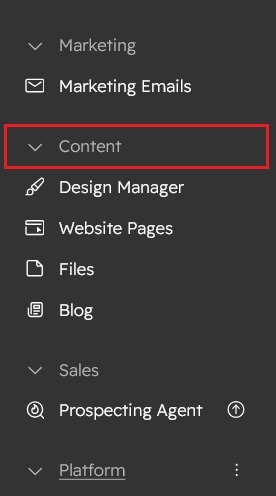
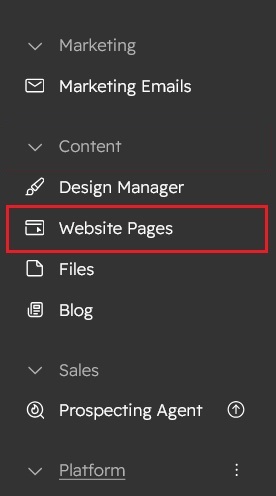
- Click on “Content” in the dropdown menu and select “Website Pages” from the extended menu.
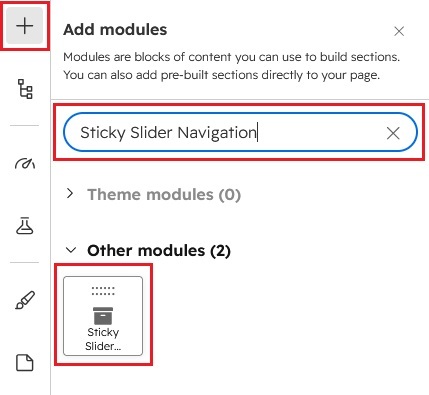
- Under the module selection menu, search for “Sticky Slider Navigation” and select the module
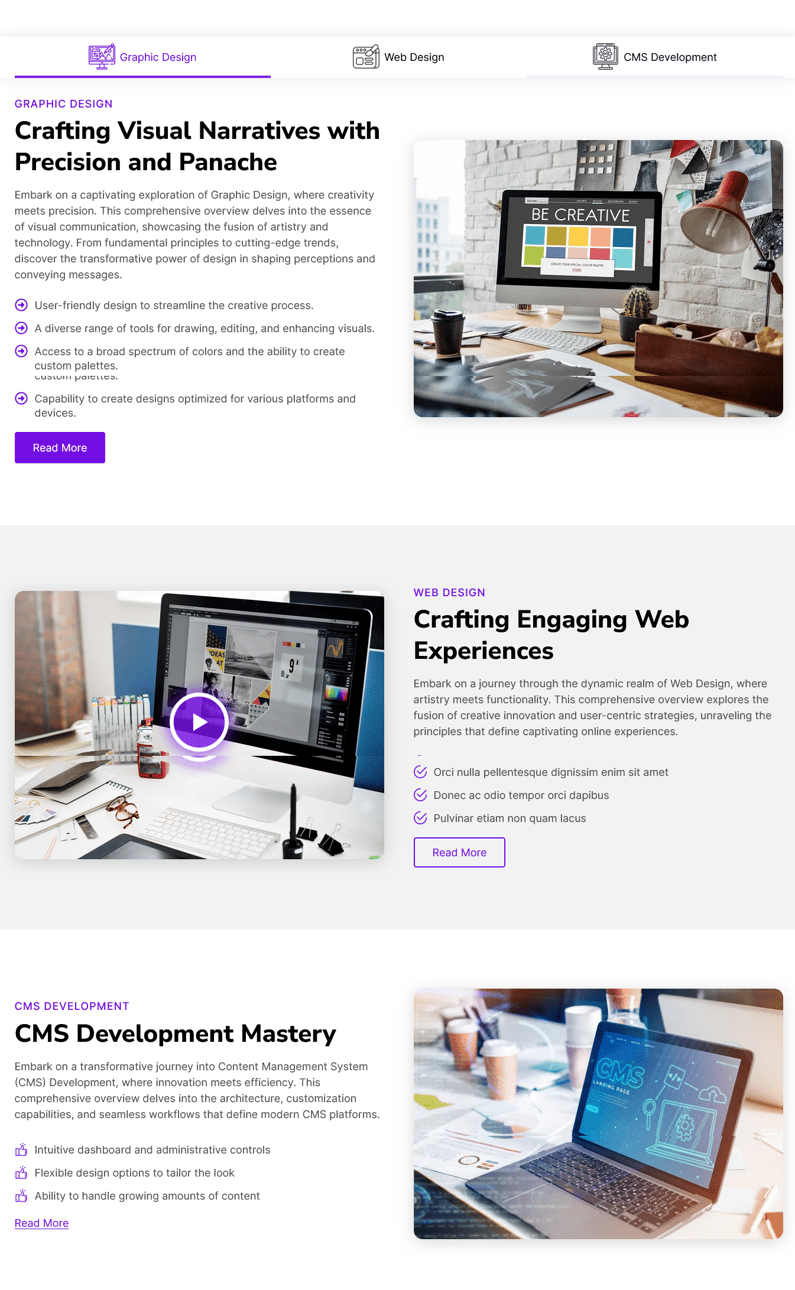
- Now simply pick the "Sticky Slider Navigation" module, drag, and drop it wherever you want on your page. You’ll see a new module appear on the page.
Content Setting
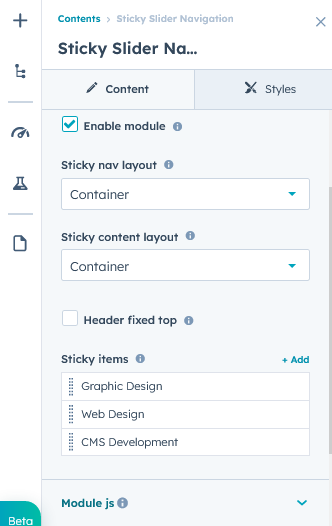
- Enable module: Show/hide the sticky slider navigation in desktop and mobile.
- Sticky nav layout: Sticky nav bar can be set in container and full width layouts.
- Sticky content layout: Sticky content section can be set in container and full width layouts.
- Sticky items: Sticky items are repeater group
-
Figure:
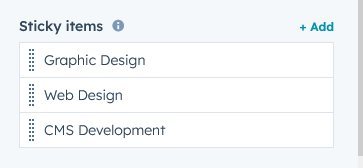
- Sticky label name: Under sticky items group, sticky label name for Ex. "Graphic Design"
- Enable title icon: Enable title icon to display the title icon group. Icons can also be used with sticky nav bar label.
- Title icon: Title icon group include the default and custom icon functionality.
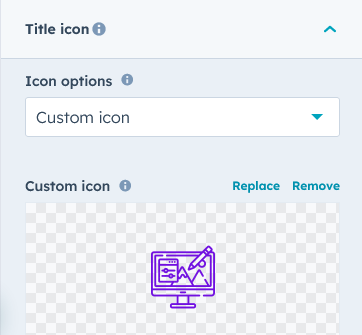
- Title icon: Title icon group include the default and custom icon functionality.
- Sticky nav block: Sticky nav block include Content section (One column and Two column), Section background and Column setting and also inline custom style.
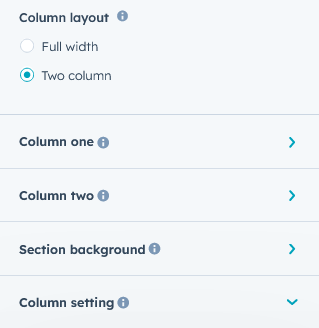
- Column layout: Sections can be set to two columns and full width using column layout. If you select full width column layout then one column group will be displayed and if you select two columns then both one column and two columns will be displayed.
- Column one: Column one is a group. Include block elements and custom style.
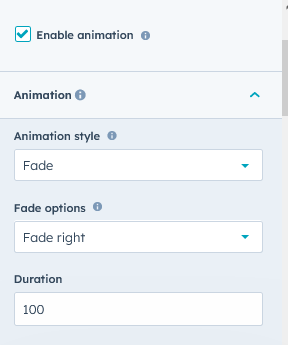
- Enable animation: Enable animation to display the Animations group.
- Animation: Animation group include the animation style like fade, flip and zoom. And also include the animation custom duration.

- Block elements: Block elements are a moveable and orderable field. This including the elements like "Overline Text", "Heading", "List", "Button", "Image", "Video (With popup box)" and "Footer Text".
- Overline Text: Overline text is a block element. It is keyword text of the heading.
- Heading text: Heading text is a block element. It is multiple line heading field.
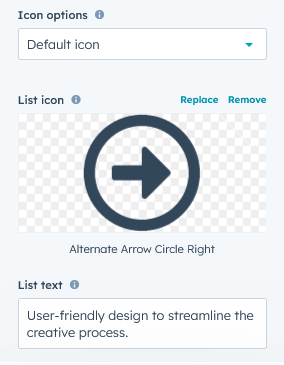
- List: List is a block element. It is repeater group. You can display the features of the Services. You can set any kind of icons

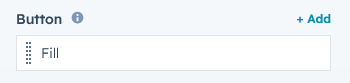
- Button: Button is block elements repeater group. Include the "Fill", "Bordered" and "Text" button style.
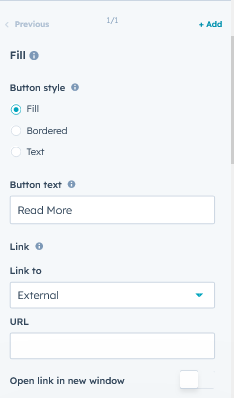

- Button text: This field is a button label field.
- Link: This field is a button link field. You can use the Internal and External links.
- Button text font: This is a font field. You can customize the inline button text style like color, font size and font weight.
- Text Transform: This is a font case field. You can easily customize the button text style inline like "Uppercase", "Lowercase" and "Capitalize"
- Background color: Background Color Field the button background color can be customized inline.
- Border width: The border width can be adjusted inline for the border size of the button.
- Border color: The border color of the button can be customized from the border color.
- Border radius: Customize the button radius using border radius field.
- Hover text color: Inline customize the button text hover color using Hover text color field.
- Hover background color: Inline customize the button hover background using Hover background color field.
- Hover border color: Inline customize the button hover border color using Hover border color field.
- Custom style: Inline customize the "Overline text font" style, "List text font" and "Alignment (Left, Center and Right)".
- Column two: This group will be shown before selecting your column layout. And same all "Fields", "Block elements" and "Custom style"
- Section background: Within Section Background there are section background options like "Background solid color", "Background gradient color" and "Background image with overlay options like (Solid and Gradient colors)".
- Column setting: Within the column settings there are fields for "Vertical alignment" and "Mobile - Column reverse".
- Vertical alignment: Columns can align such as "Top", "Middle" and "Bottom".
- Mobile - Column reverse: This field check on, if a single image element is used on the right side, then the image will be displayed at the top of the mobile.
- Column one: Column one is a group. Include block elements and custom style.
-
- Module JS: Include the module level jQuery show/hide field.
Style Setting
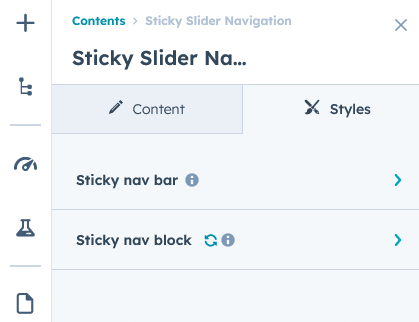
- Sticky nav bar: "Sticky nav custom height", "Nav background", "Sticky nav label", "Sticky nav label icon size", "Hover - Sticky nav items" and "Active - Sticky nav items" are included within the Sticky nav bar.

- Sticky nav custom height: The height of the sticky navigation bar can be easily customized across desktop, tablet and mobile.

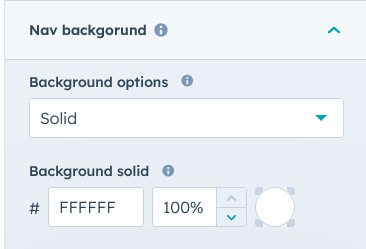
- Nav background: Sticky navigation bar background color like solid and gradient color can be changed easily.

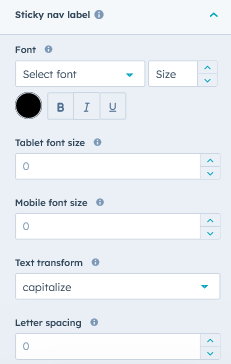
- Sticky nav label: Sticky navigation bar labels can be fully customized with font style, tablet font size, mobile font size, text transform and line height.
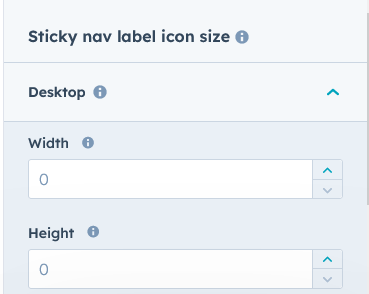
- Sticky nav label icon size: Sticky Navigation Label Icon size is extremely customizable for desktop and tablet.
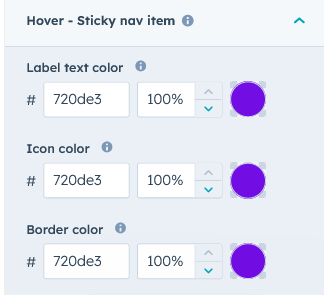
- Hover - Sticky nav item: Label text color, border color, and default icon color can be easily changed.
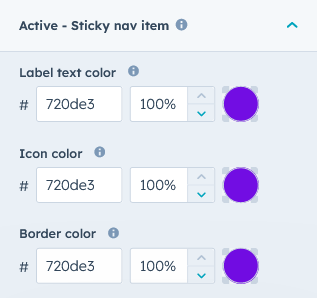
- Active - Sticky nav item: Label text color, border color, and default icon color can be easily changed.
- Sticky nav custom height: The height of the sticky navigation bar can be easily customized across desktop, tablet and mobile.
- Sticky nav block: Spacing of elements and sections within a sticky navigation block can be easily customized.

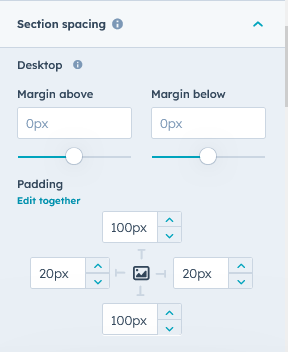
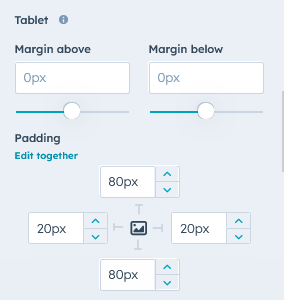
- Section spacing: Desktop, tablet and mobile spacing can be easily changed.

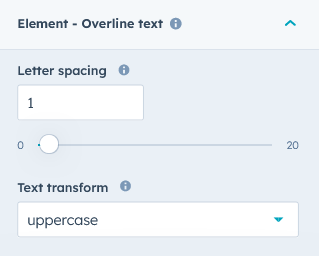
- Element - Overline text: Letter spacing and text transform can be easily customized.
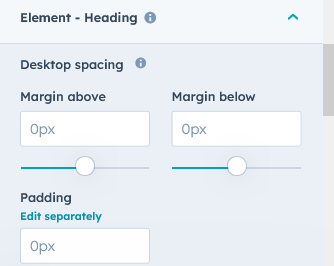
- Element - Heading: Spacing of headings element can be easily changed on desktop, tablet and mobile.
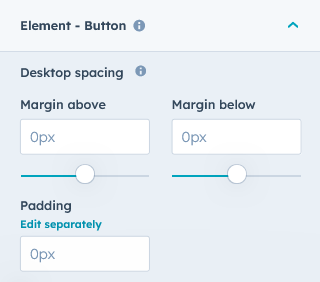
- Element - Button: Spacing of button element can be easily changed on desktop, tablet and mobile.
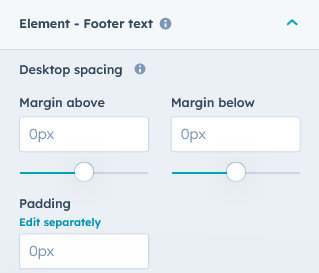
- Element - Footer text: Spacing of footer text element can be easily changed on desktop, tablet and mobile.
- Element - List: Spacing, Line height and Icon size of list element can be easily changed on desktop, tablet and mobile.

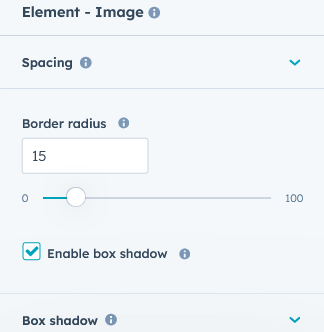
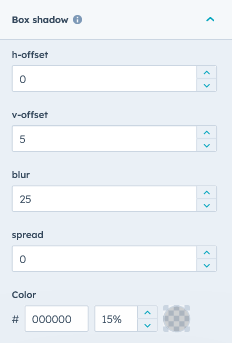
- Element - Image: Spacing, Border radius and Box Shadow of image element can be easily customized.

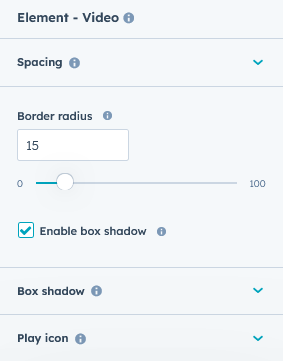
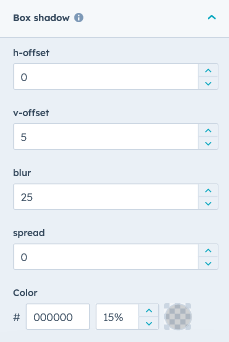
- Element - Video: Spacing, Border radius, Box Shadow and Play icon size of video element can be easily customized.


- Section spacing: Desktop, tablet and mobile spacing can be easily changed.
Support
If you have further questions, please reach out to our team at hawksky3012@gmail.com.